Coverage tracking
Build and preview a data-collection form
Create a reusable form, add questions, configure field properties and preview the experience before saving.
- Signed in with access to Form Builder
- A clear form purpose and name
- A list of required questions and answer types
Follow these steps
Open the Forms library
Under Coverage Tracking, select Form Builder. The Forms page lists existing forms, linked activities, creation dates and available actions. Search first to avoid creating a duplicate.
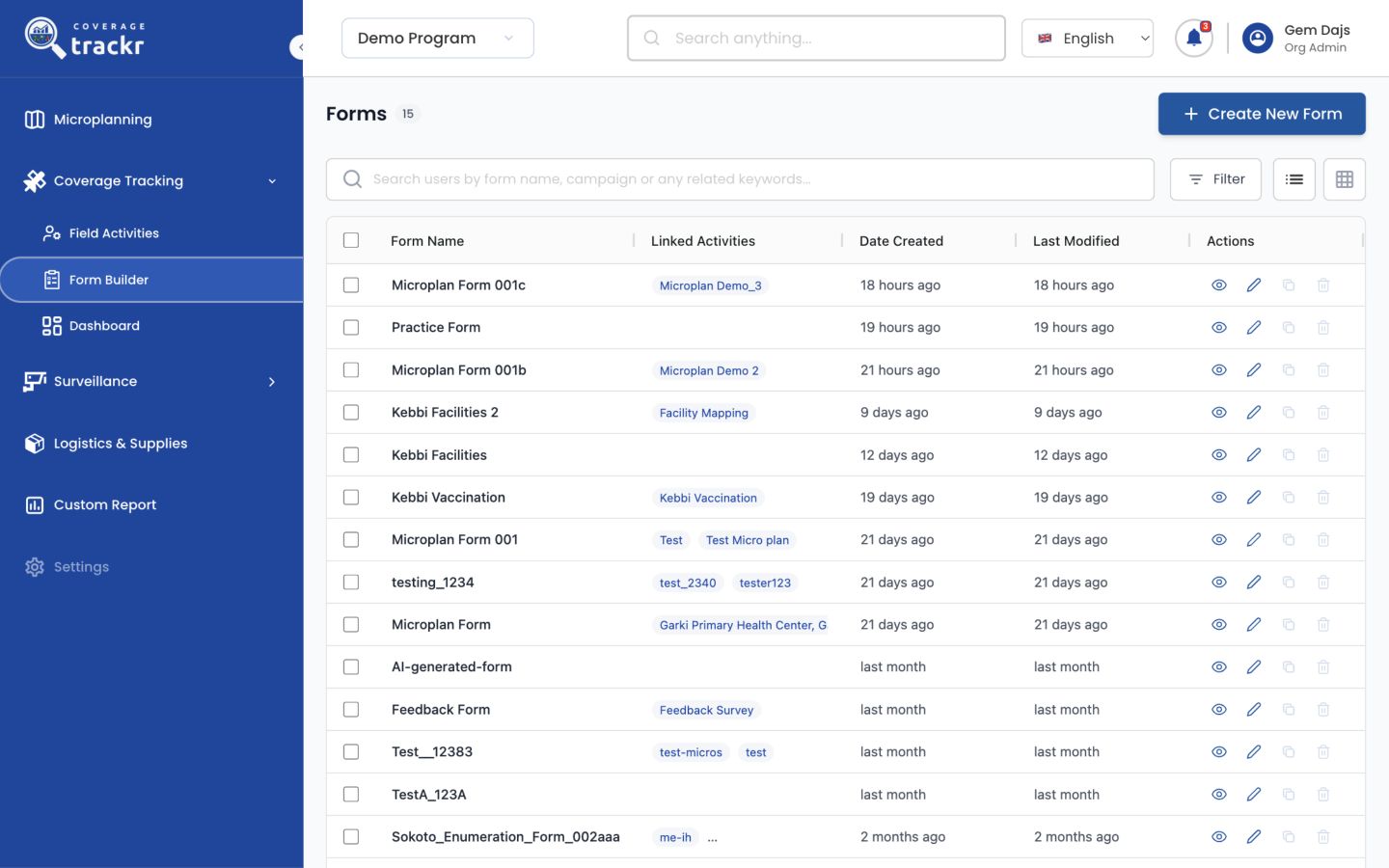
Create a new form
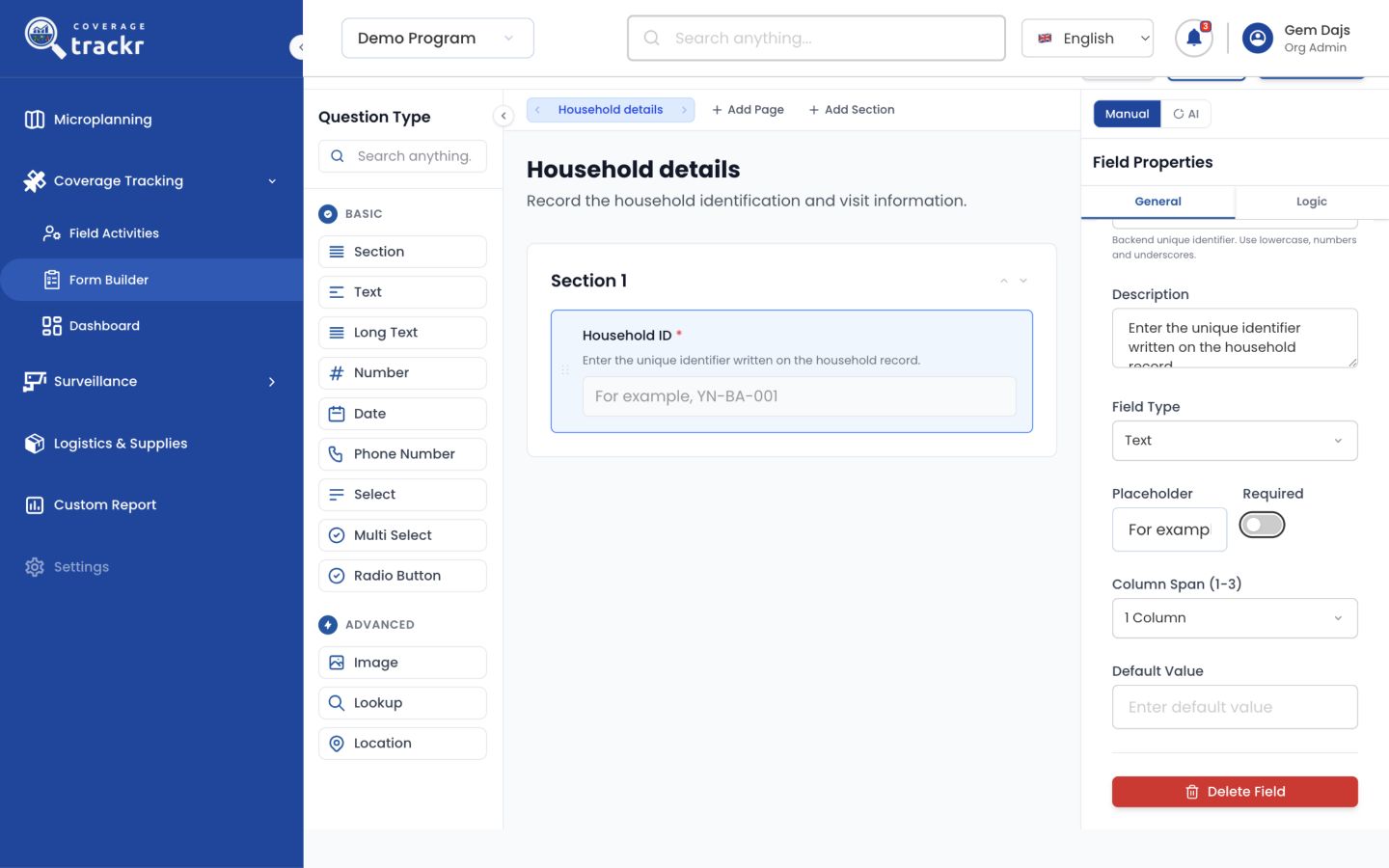
Select Create New Form and replace Untitled Form with a meaningful name. The builder opens with a question-type panel, a form canvas and a properties panel.
Add pages, sections and fields
Use Add Page and Add Section to organise longer forms. Add a field from the Basic or Advanced question types. Available types include Text, Long Text, Number, Date, Phone Number, Select, Multi Select, Radio Button, Image, Lookup and Location.
Configure the selected field
Enter the Field Label and review the generated Field ID. Add a description or placeholder when it will help field users. Enable Required only when the question must be answered, and set the column span or default value when appropriate.
Note: Field IDs are backend identifiers. Keep them lowercase and use only numbers and underscores, as indicated in the builder.
Add logic where necessary
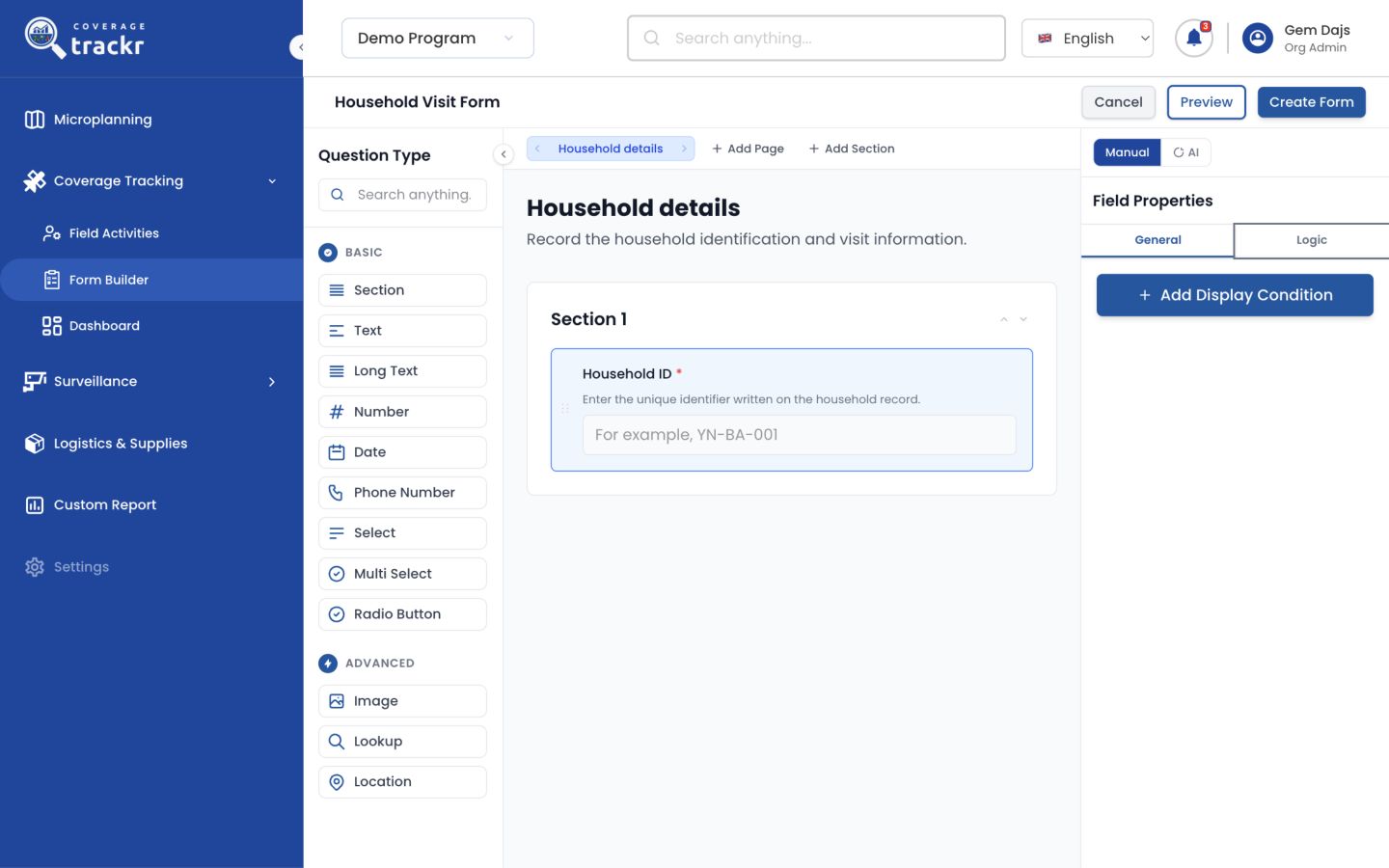
Use the Logic tab for conditional behaviour. Keep branching rules simple and test each path so users never reach a dead end or miss a required question.
Preview the form
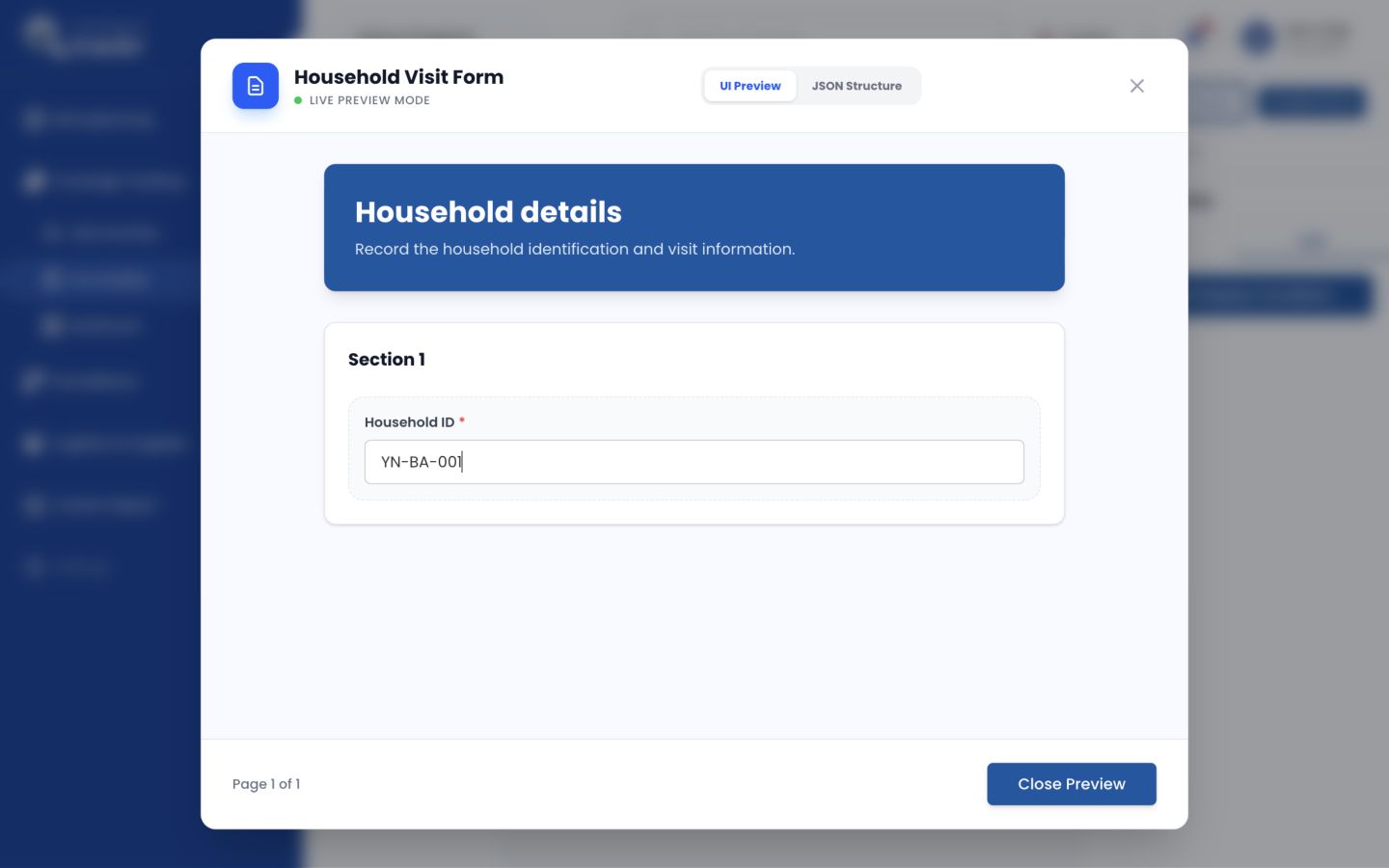
Select Preview and test the form as a user would. Review labels, required markers, navigation and the JSON Structure when a technical review is needed. Close Preview to return to editing.
Create the form
When the preview is correct, select Create Form. Return to the Forms library and confirm the form appears before linking it to an activity.
A reviewed form is available for linking to a field activity.
If something goes wrong
The field ID contains unsupported characters.
Use lowercase letters, numbers and underscores only. Remove spaces and punctuation before saving.
A form cannot be edited as expected.
Check whether the form is linked to a published activity. Changes to an operational form may be restricted to protect existing submissions.