Coverage tracking
Find and review field activities
Use the Field Activities workspace to locate activities, understand their status and choose the appropriate action.
- Signed in to CoverageTrackr
- Access to the relevant programme
Follow these steps
Open Field Activities
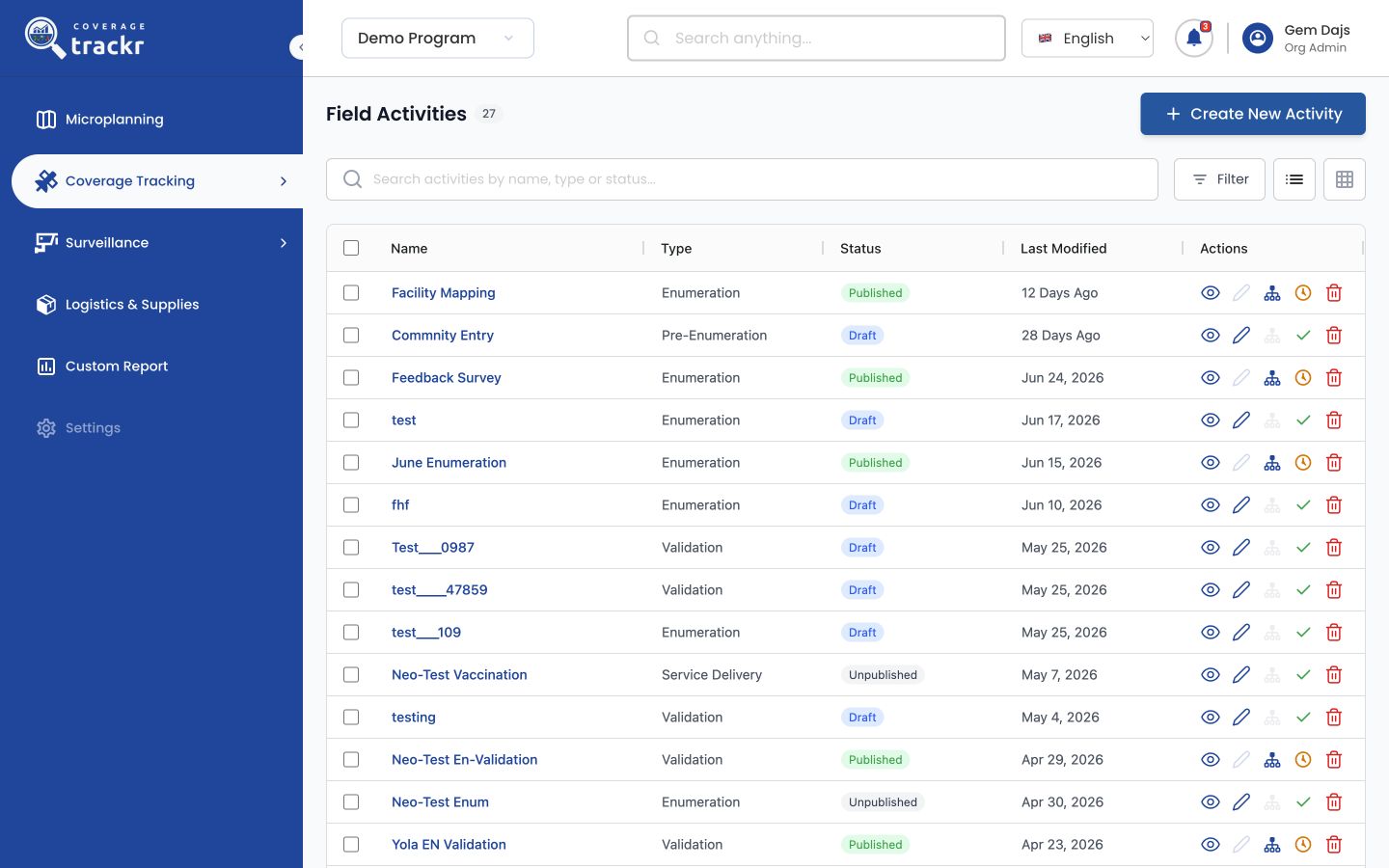
From the left navigation, expand Coverage Tracking and select Field Activities. The page shows the total number of activities and a list of activity records.
Search for an activity
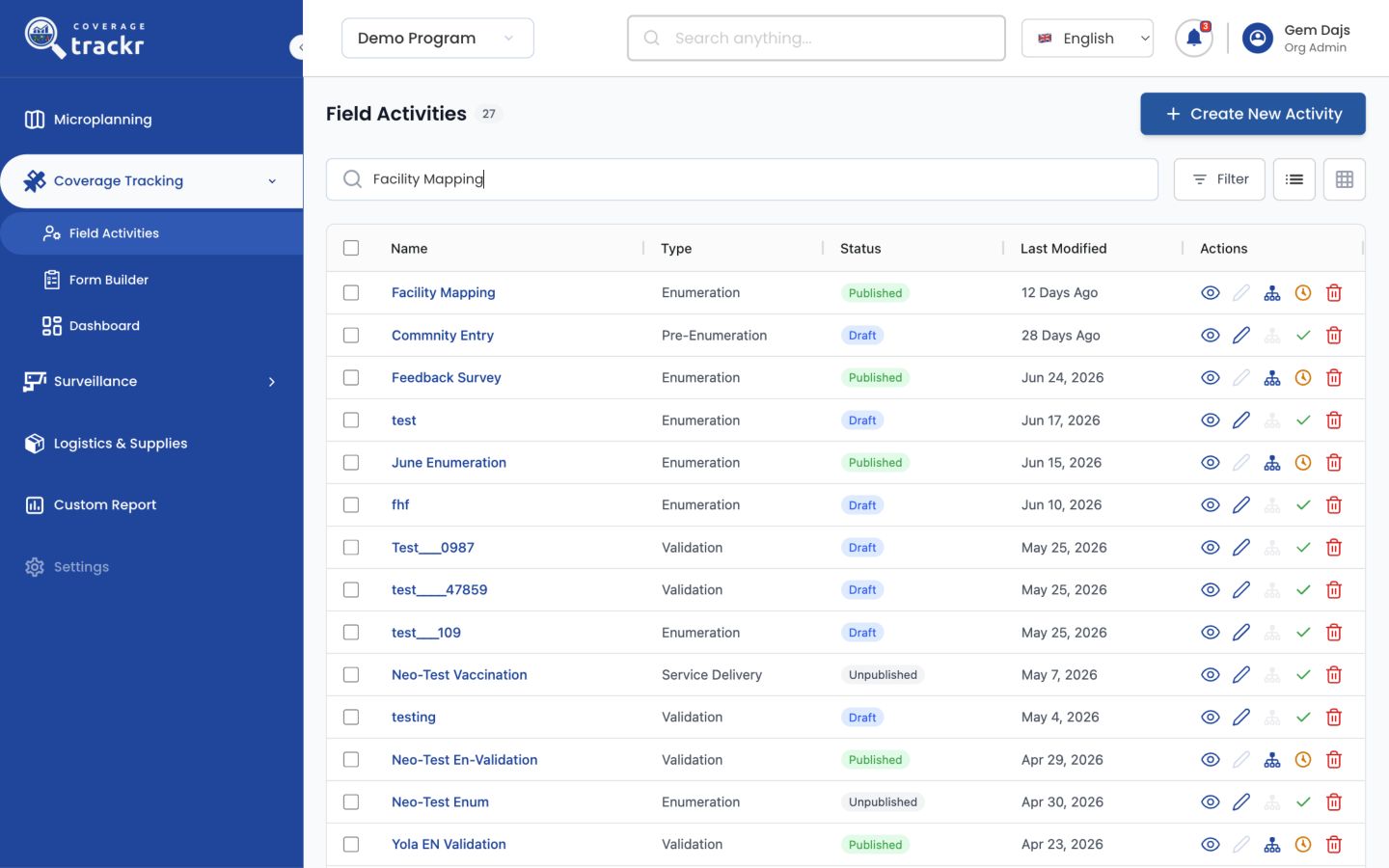
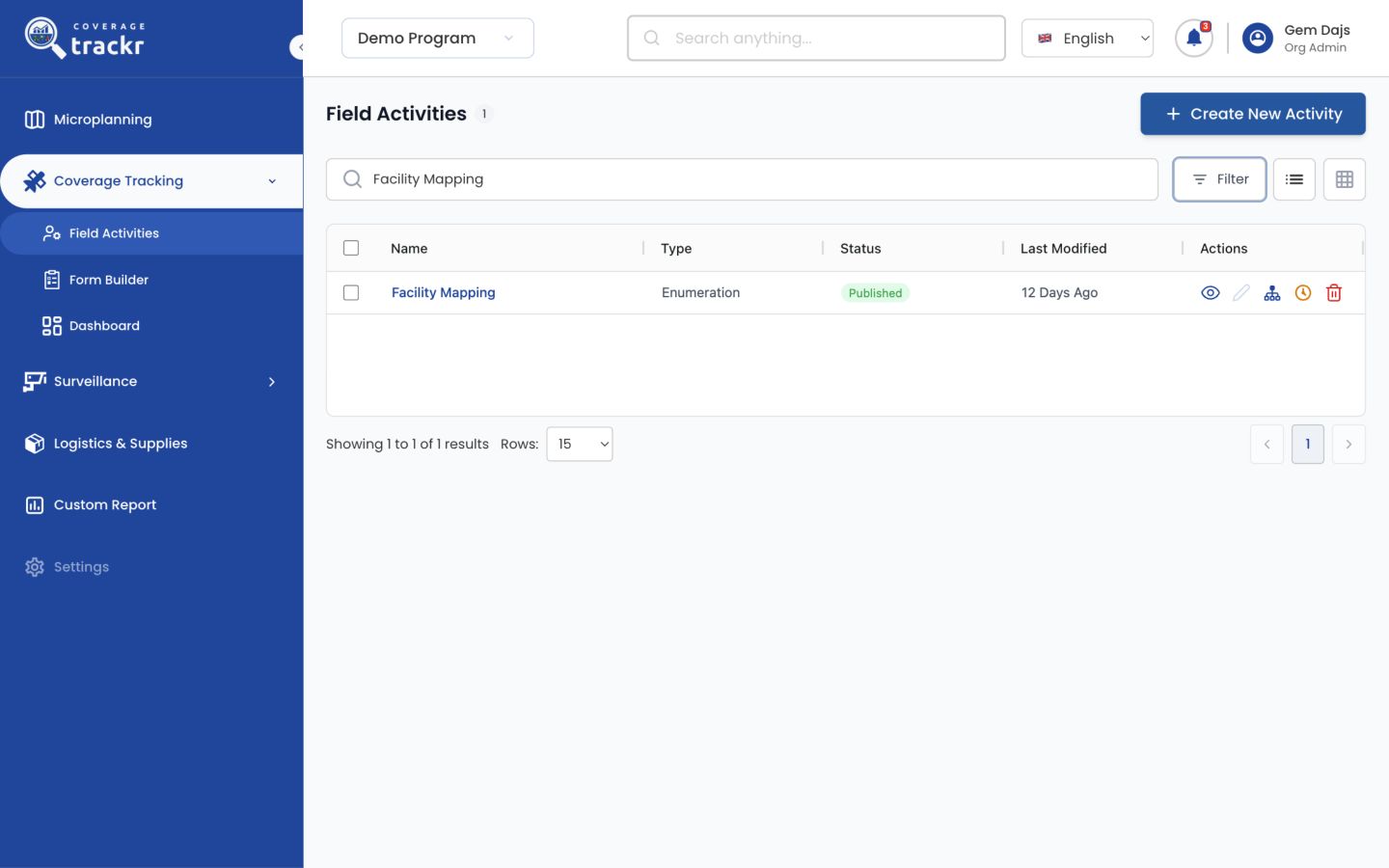
Use the search field to look up an activity by name, type or status. Keep the search short and specific—for example, enter a distinctive part of the activity name.
Apply filters or change the view
Select Filter to narrow the results. Use List View for a compact table or Grid View for a card-based layout. Adjust the Rows control when you need to see more results on one page.
Interpret the activity status
Draft activities are still being configured. Published activities are available for use according to their deployment. Unpublished activities are retained but are not currently available to field users.
Choose an available action
Use View to inspect an activity. Depending on the status, CoverageTrackr may also offer Edit, Update Teams, Publish or Unpublish. Disabled controls indicate that the action is not valid for the current status.
Note: Deleting, publishing and unpublishing change the activity for other users. Confirm that you are working in the correct programme before using these actions.
You can locate an activity and identify the actions available for its current status.
If something goes wrong
An expected activity does not appear.
Clear the search and filters, confirm the active programme, and check the next results page. Your role may also limit which activities you can see.
Edit is disabled.
Published activities cannot be edited from the list. Review the activity and follow your programme's change-control process before unpublishing it.