Coverage tracking
Create a field activity
Start an Enumeration, Validation, Service Delivery or Pre-Enumeration activity and prepare it for deployment.
- Signed in with permission to create activities
- An activity name, description and operating dates
- A prepared form or permission to create one
- The required deployment areas and teams
Follow these steps
Start a new activity
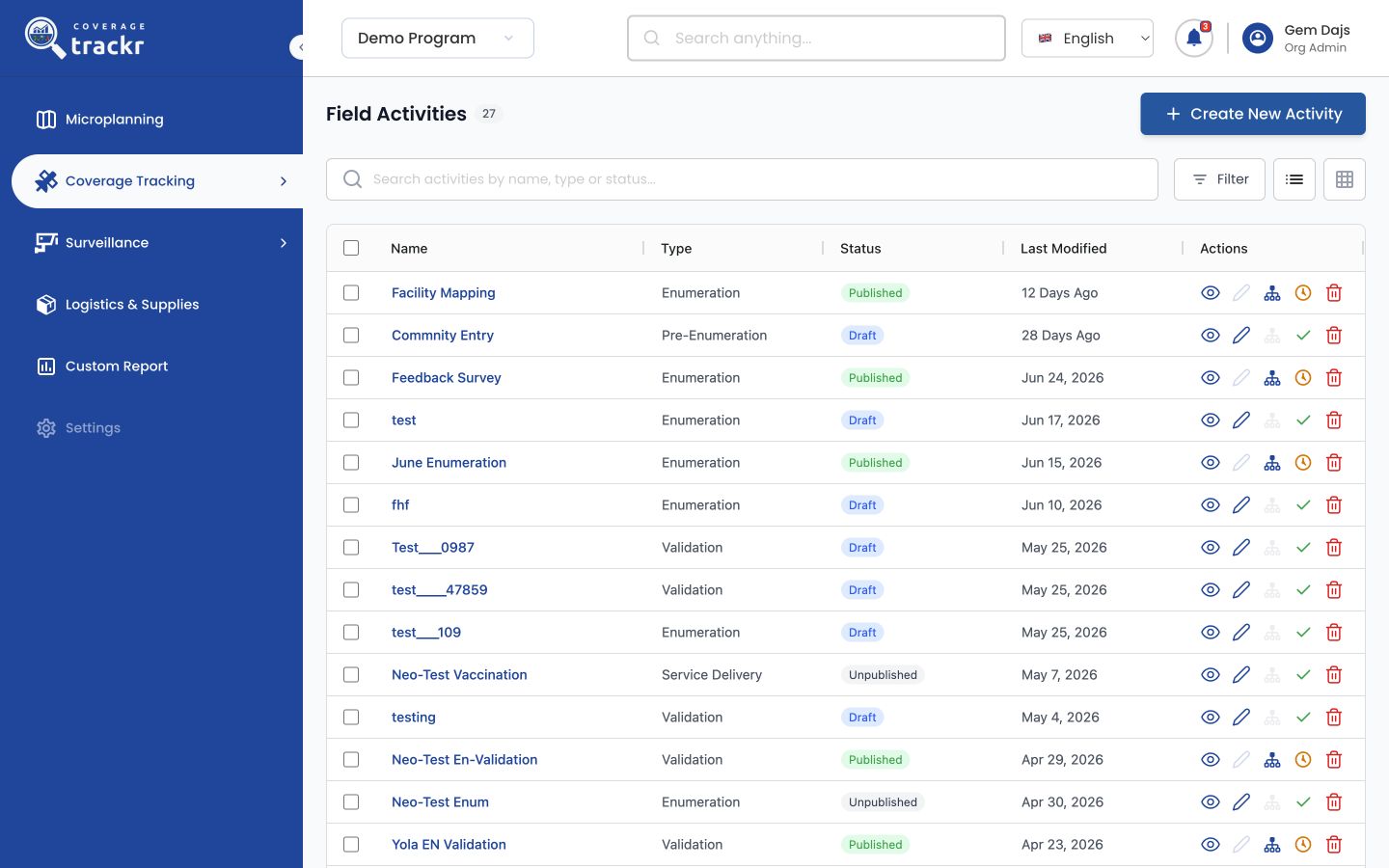
Open Coverage Tracking → Field Activities, then select Create New Activity. CoverageTrackr opens a guided setup process.
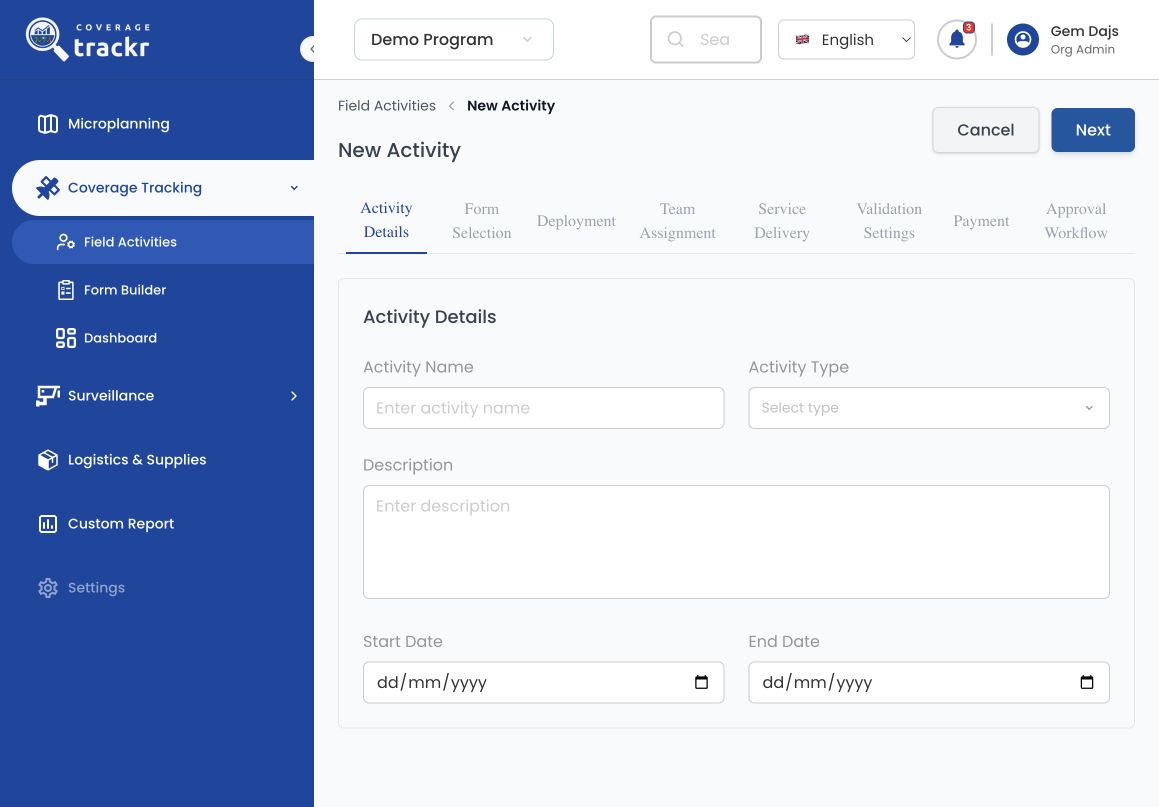
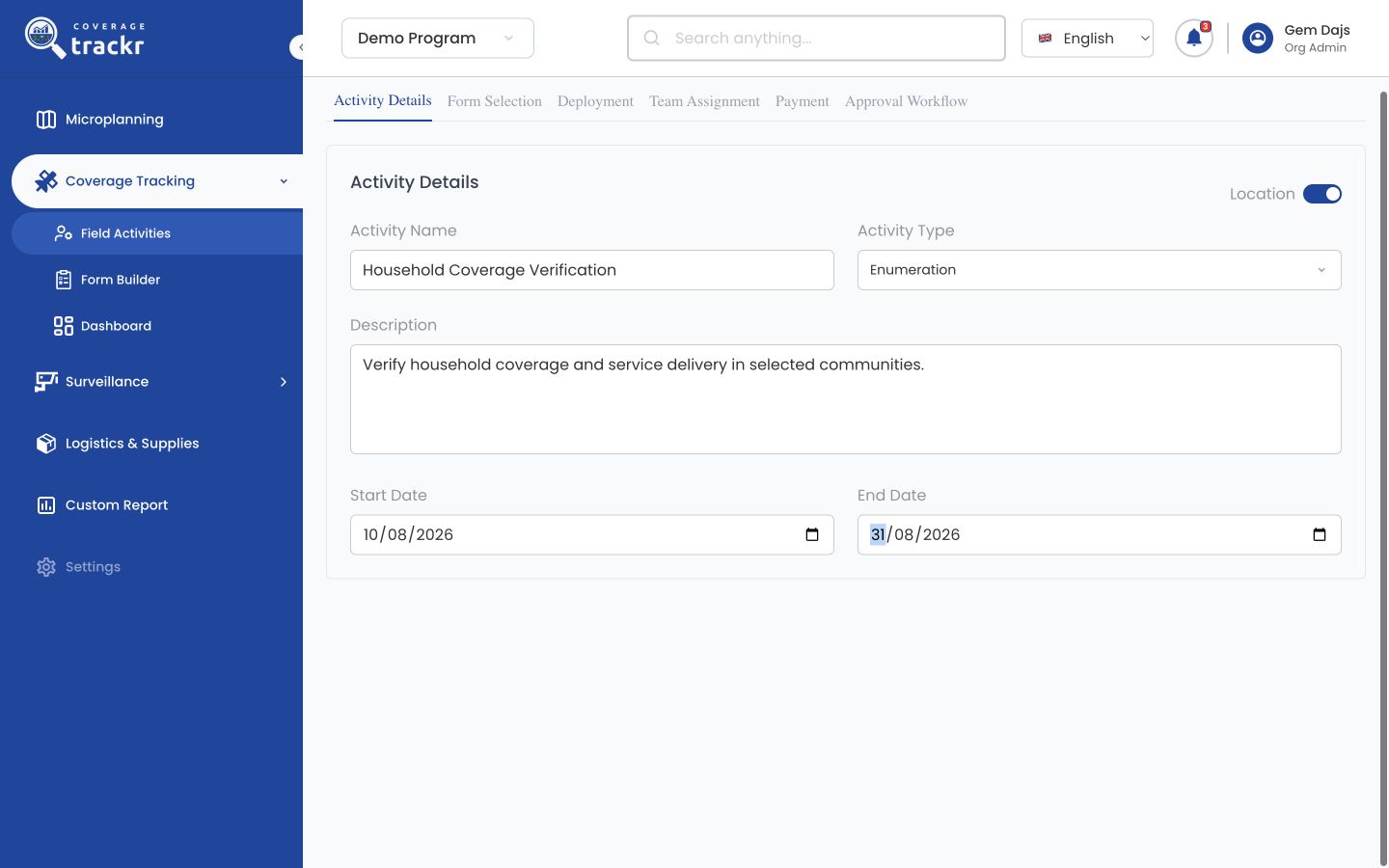
Enter the activity details
Enter a clear activity name and description. Choose the activity type: Enumeration, Validation, Service Delivery or Pre-Enumeration. Set the start and end dates and enable Location when the workflow should collect location information.
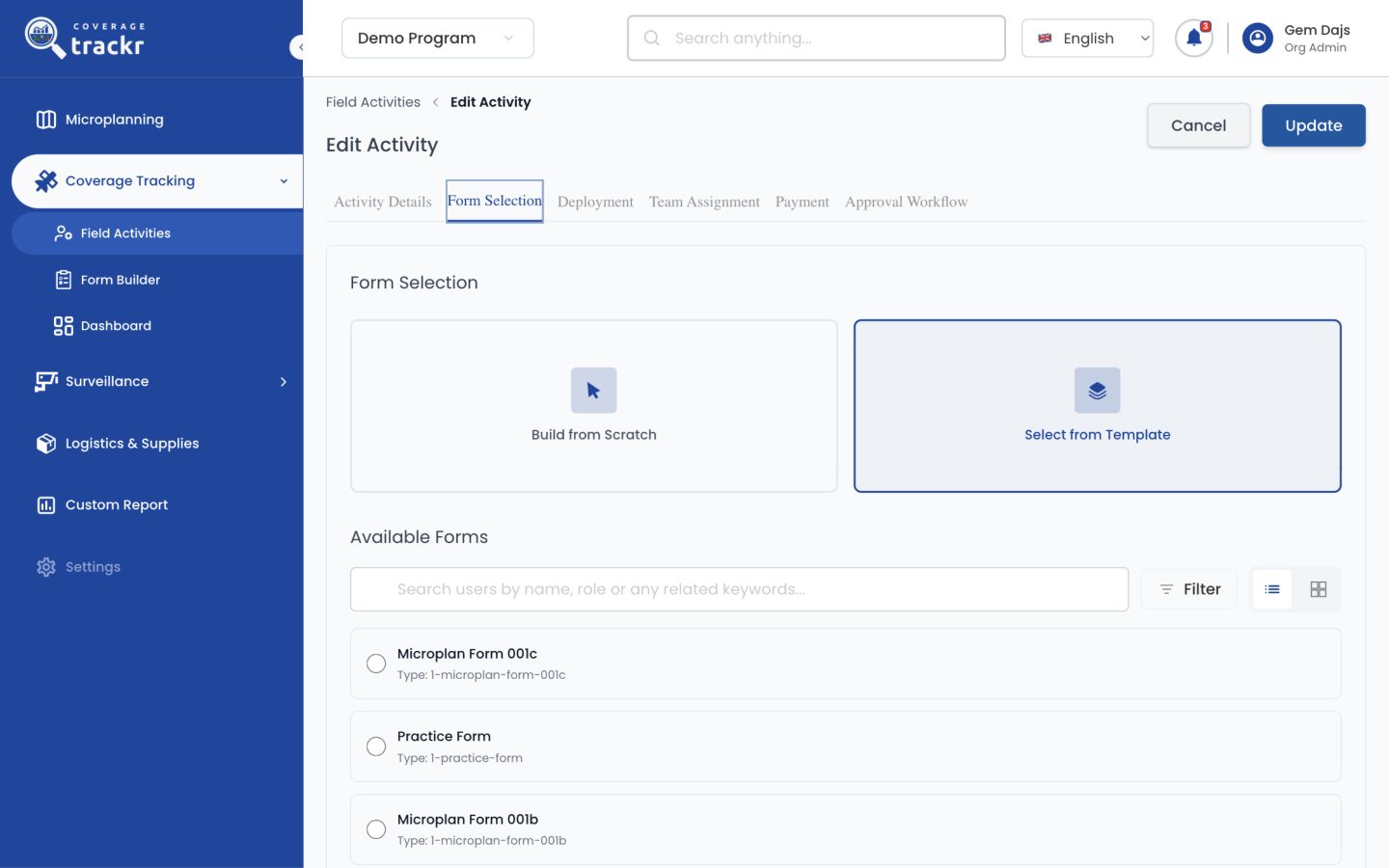
Select the form
Select Next to continue to Form Selection. Choose the form field users will complete. If the required form does not exist, return to Form Builder and create it before continuing.
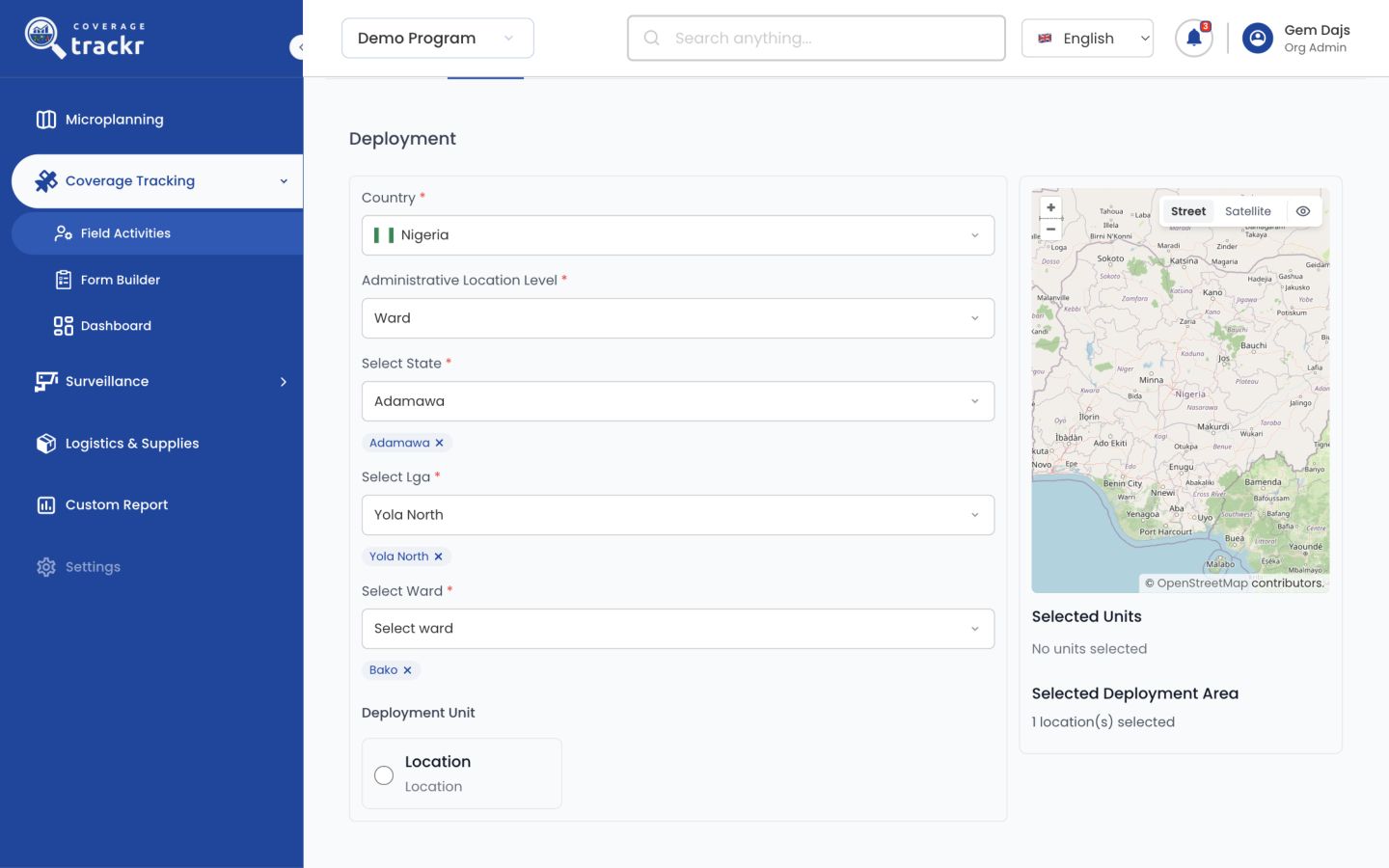
Configure deployment
In Deployment, select the administrative areas and operational units where the activity will run. Review the selection carefully because it determines the activity's geographic scope.
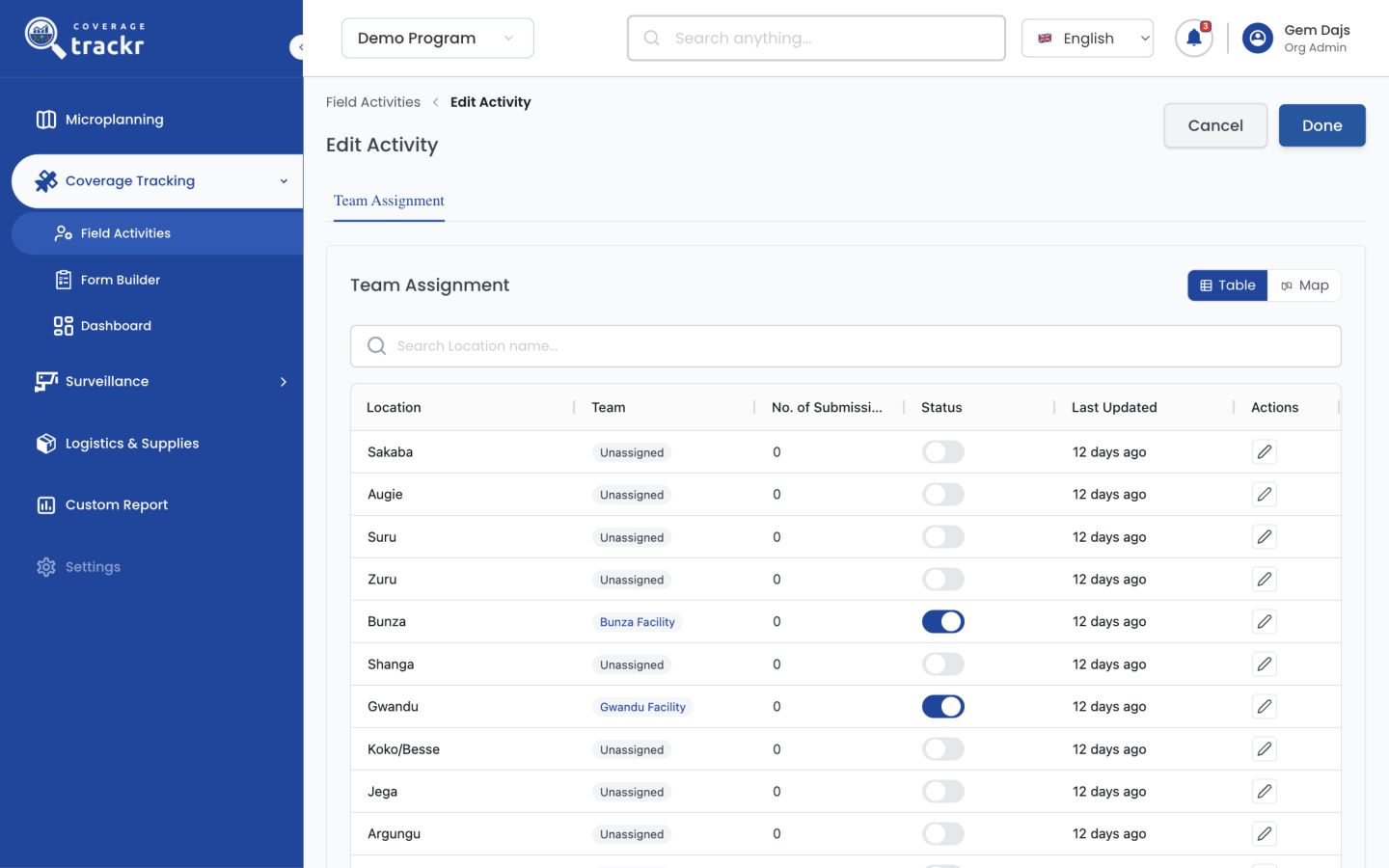
Assign teams
In Team Assignment, assign the responsible users or teams to the selected deployment units. Ensure every required area has an owner before moving on.
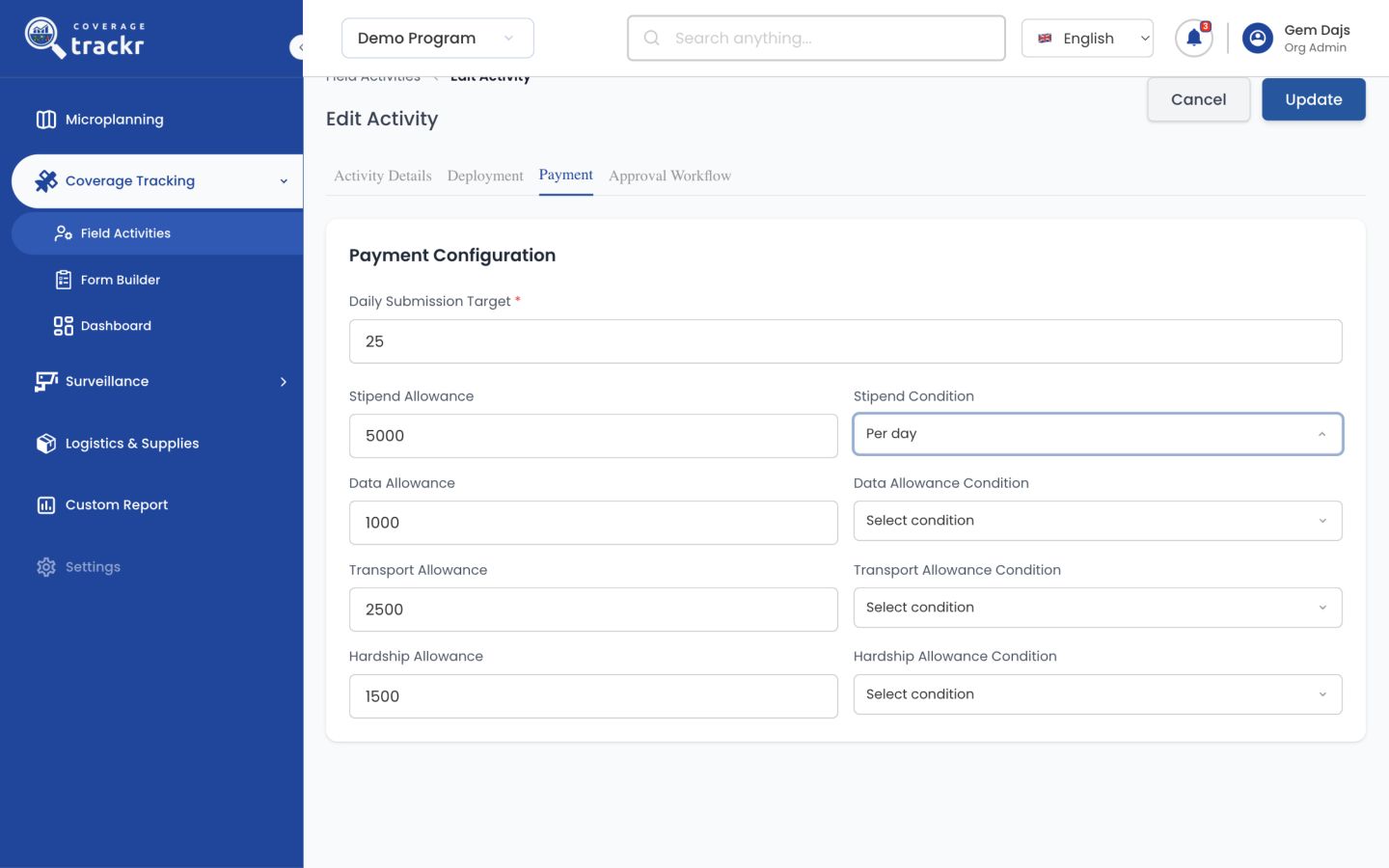
Configure payment settings
Enter the daily target and any applicable stipend, data, transport or hardship allowances. Select the condition that determines when each allowance is earned.
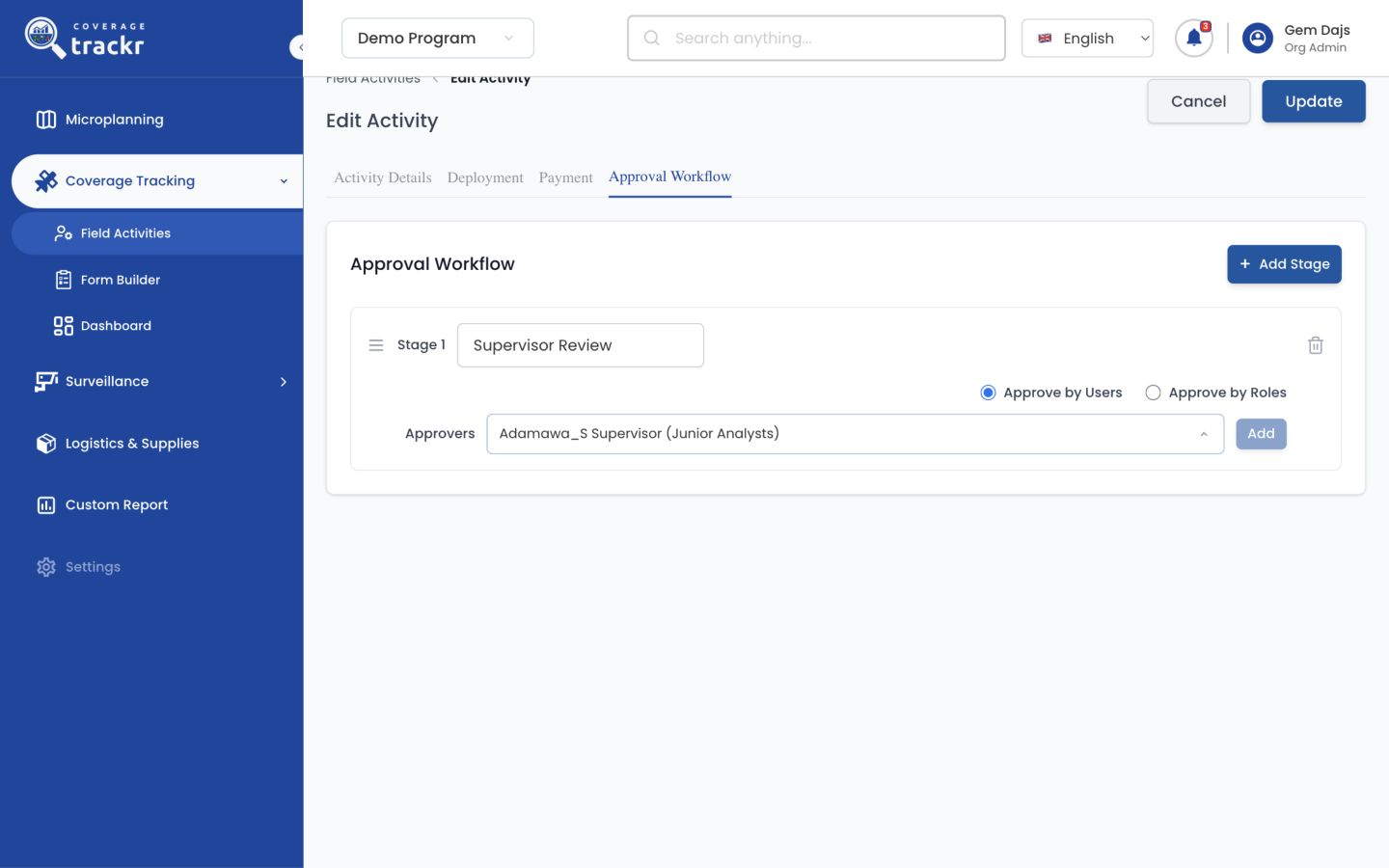
Add the approval workflow
Add each review stage, give it a clear name, and select the responsible user or role. Keep the sequence aligned with your programme's approval process.
Review before publishing
Save the activity as a draft and review its form, scope, team assignments and dates. Publish only when it is ready to become available to the intended users.
Note: Publishing has an immediate operational effect. Use a draft for review and obtain the required approval before publishing.
A new activity is configured with its form, deployment and team settings, ready for review before publishing.
If something goes wrong
Next reports that required fields are missing.
Check the activity name, type, description, dates and any type-specific control shown on the page. Required information must be complete before the next stage is enabled.
The required form is not listed.
Confirm that the form exists in the active programme and is not already restricted by another workflow. Create or update the form in Form Builder if needed.