Getting started
Sign in to CoverageTrackr
Access your assigned programme workspace securely with your CoverageTrackr username and password.
- An active CoverageTrackr account
- Your assigned username and password
- A supported web browser and internet connection
Follow these steps
Open the sign-in page
Go to your organisation's CoverageTrackr web address. The sign-in page displays fields for your username and password.

Enter your assigned credentials
Enter the username and password provided by your administrator. Passwords are case-sensitive, so enter uppercase letters, lowercase letters and symbols exactly as supplied.
Note: Never include a password in a screenshot, email or support message. If you think it has been exposed, ask an administrator to reset it.
Select Login
Select Login once and wait for CoverageTrackr to load your programme. Your landing page and available modules depend on your assigned role.
Confirm the active programme
Check the programme name at the top of the page before starting work. If you have access to more than one programme, select the correct programme before creating or editing records.
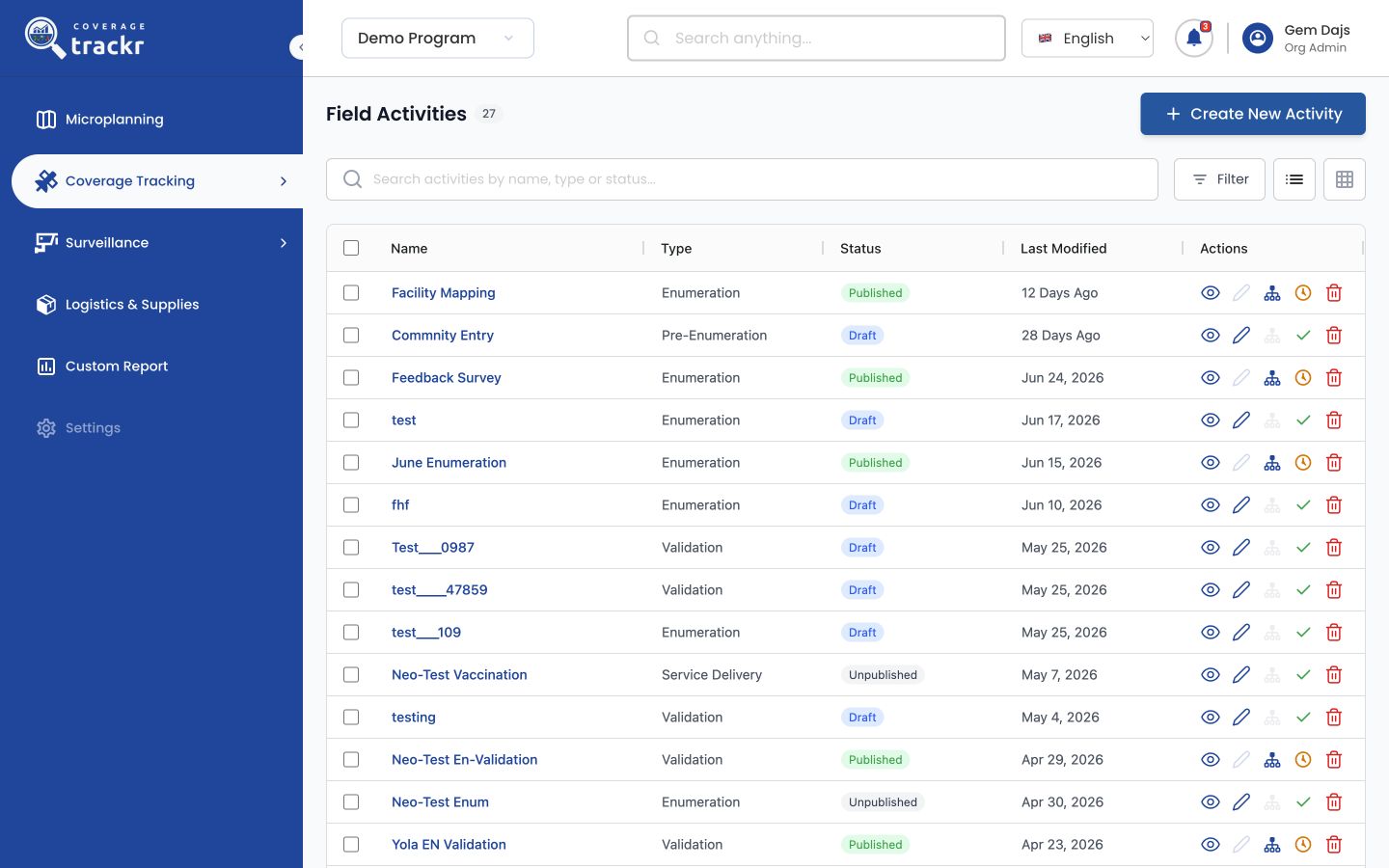
You are signed in and can see the modules available to your role.
If something goes wrong
The sign-in page says the credentials are invalid.
Re-enter the username and password carefully. If the message continues, contact your organisation administrator to confirm the account is active.
The page remains on “Signing in…”.
Check your connection, wait briefly, then reload the page and try once more. Avoid selecting Login repeatedly.